 Break Reminder
Counts the time you actually work and suggests a short break. It stays quiet until you turn reminders on.
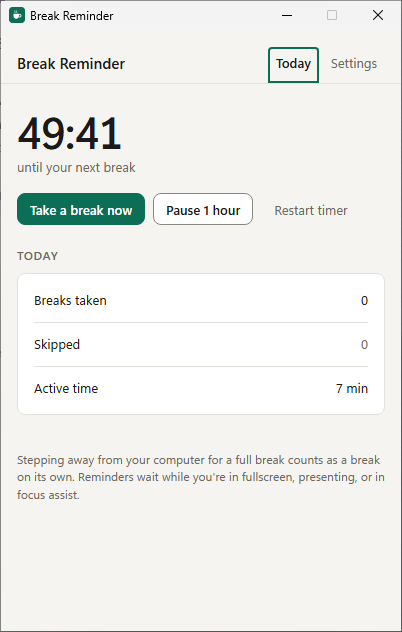
What it does
Small and quiet, it lives in the tray. Click the icon and it opens next to the clock; click away and it hides.
Counts real work only
Pauses of a minute or more don't count as work, and stepping away for as long as a break counts as a break taken.
Off until you want it
Nothing pops up after install. Turn reminders on and pick when: after 50 minutes of active work by default, anywhere from 5 to 240.
Never in the way
Reminders wait while you're in fullscreen, presenting or in focus assist. Snooze for 10 minutes or pause for an hour from the reminder or the tray.
Eye breaks, if you like
An optional quiet notification every 20 minutes to look at something far away. Off by default.
Today at a glance
Breaks taken, breaks skipped and active time for the day, in a small window next to the tray.
Privacy in short
- On your PC
- Your settings and today's break counts. Stored in your Windows user profile and never uploaded by Break Reminder.
- Bandwidth sharing
- EarnFM processes your IP address, a device ID and your consent record to run the sharing, based on your consent.
- Usage statistics
- Break Reminder sends usage statistics to PostHog (EU): a random install ID, app and Windows version, sharing and settings status, feature use counts, crash summaries and, once you've agreed, recordings of how its window is used with your content hidden. Never your clipboard, snippets, what you type or window titles. No account, no ads.
- This website
- PostHog analytics and page recordings without cookies, to see which pages and campaigns lead to downloads and how the pages are used. It's served by Cloudflare, which handles your IP address to deliver the pages.
Questions
What do I need to run it?
Windows 10 or Windows 11, 64-bit. It installs for your Windows account only, so you don't need administrator rights. Break Reminder uses Microsoft Edge WebView2, which is part of Windows 11 and most Windows 10 PCs; if it's missing, the installer fetches it.
Windows says it protected my PC. Is the download safe?
New downloads build trust with Microsoft's SmartScreen over time, so Windows may show "Windows protected your PC" for a while. The installer is signed by TeraShift GmbH. Check that the publisher shown is TeraShift GmbH, then choose More info and Run anyway.
Is it really free?
Yes. Every feature is included, with no ads, trials or purchases. Break Reminder is paid for by sharing a little unused bandwidth, which you agree to when you first open it. How that works.
Can I use it without sharing bandwidth?
No. Sharing is what keeps Break Reminder free, so the app asks first and only runs if you agree. If you choose "No thanks, quit", nothing is shared and the app closes.
Will it slow down my internet?
It's built to use only bandwidth you aren't using, and it stops while Break Reminder isn't running. If you notice a difference you're unhappy with, uninstalling stops it completely.
How do I stop sharing or uninstall?
Uninstall Break Reminder: open Windows Settings, then Apps, then Installed apps, find Break Reminder and choose Uninstall. Sharing stops as soon as it's uninstalled. In the app, Settings, then Stop sharing, takes you to the same place. Step-by-step instructions.
What data does it collect?
The app's own data (your settings and today's break counts) stays on your PC. For bandwidth sharing, EarnFM processes your IP address, a device ID and a record of your consent. Break Reminder also sends usage statistics to PostHog, our analytics service in the EU: a random install ID, the app and Windows version, whether sharing and Start with Windows are on, which settings are switched on and how often features are used. Once you've agreed, it also records how its window is used, with your own content (clipboard items, snippets, app names, places) and input fields hidden. It never sends what you copy, type or store, or window titles. Details are in the privacy policy.
Does it start with Windows?
Yes, quietly in the tray, so it's there when you need it. You can turn that off in Break Reminder's Settings. Anything that would interrupt you, like notifications or shortcuts, is off until you turn it on.
Will it interrupt a meeting or a game?
No. With "Don't interrupt" on (the default), reminders wait while a fullscreen app, a presentation or focus assist is active.
Get Break Reminder
Free for Windows 10 and 11. By installing and agreeing in the app, you accept the terms of use.